Google Drive
- 4.3
- Rating
- 10.00B
- Installs
- Free
- Price
 Analysis by App-foxy
I keep coming back to the same small problem: a file is on the wrong device, an attachment is too large to find quickly, or the latest version of a document is hiding in an old message. Google Drive is useful because it turns that problem into a simple habit: put the file in one place, then open it wherever you need it. After using it as a productivity app rather than just a storage drawer, I found that its real value is the time it saves between finding, sharing, and continuing work.
Google Drive is free to install and is developed by Google LLC. It belongs to the productivity category, carries an Everyone age rating, and has been available since April 27, 2011. Its scale is hard to ignore: it has passed ten billion installs, with an average rating of 4.3 from around eleven million ratings. Those figures do not automatically make it perfect, but they do reflect how deeply it fits into everyday Android and iOS routines.
Why Google Drive earns a place in my daily workflow
I find Drive earns its place less through any single feature than through how calmly it handles the handoffs between saving, finding, and sharing a file. In this section, I’ll look at the choices that make that routine feel dependable, then turn to the moments when a little extra care matters most.
In-Depth Coverage of Google Drive
The recurring problem it removes
The most useful thing about Drive is not that it stores files. Plenty of services do that. The advantage is that it sits close to the other tools people already use for documents, photos, schoolwork, work folders, and shared projects. Instead of asking myself whether a file is in Downloads, an email thread, a chat, or on a computer, I can start with one location and search from there.
That change sounds minor, but it matters when a task is interrupted. I might begin a document on a laptop, check it on a phone while traveling, and send it to someone from a tablet. Drive makes that handoff feel less like transferring a file and more like reopening the same workspace. For me, that is the difference between a storage app I remember occasionally and a productivity tool I use almost automatically.
The app is especially practical when several versions of a file are circulating. Rather than downloading a document, editing it, renaming it, and sending another copy, I can work from a shared location. That reduces the familiar “which version should I use?” confusion. It does not eliminate every mistake, but it makes the correct workflow easier to follow.
A first setup that pays off quickly
My advice is to avoid treating the opening screen as a dumping ground. Before uploading everything, create a small folder structure that matches the way you actually think: current projects, personal records, travel, study, or household documents. A simple arrangement is usually better than a maze of deeply nested folders that looks organized but slows down retrieval.
I also recommend deciding what belongs in Drive and what should remain elsewhere. It is excellent for files I need to access, share, or continue editing. It is less sensible as a place to throw every temporary download. If I save receipts, screenshots, and one-time attachments without a cleanup routine, search becomes less useful and the folder view becomes noisy.
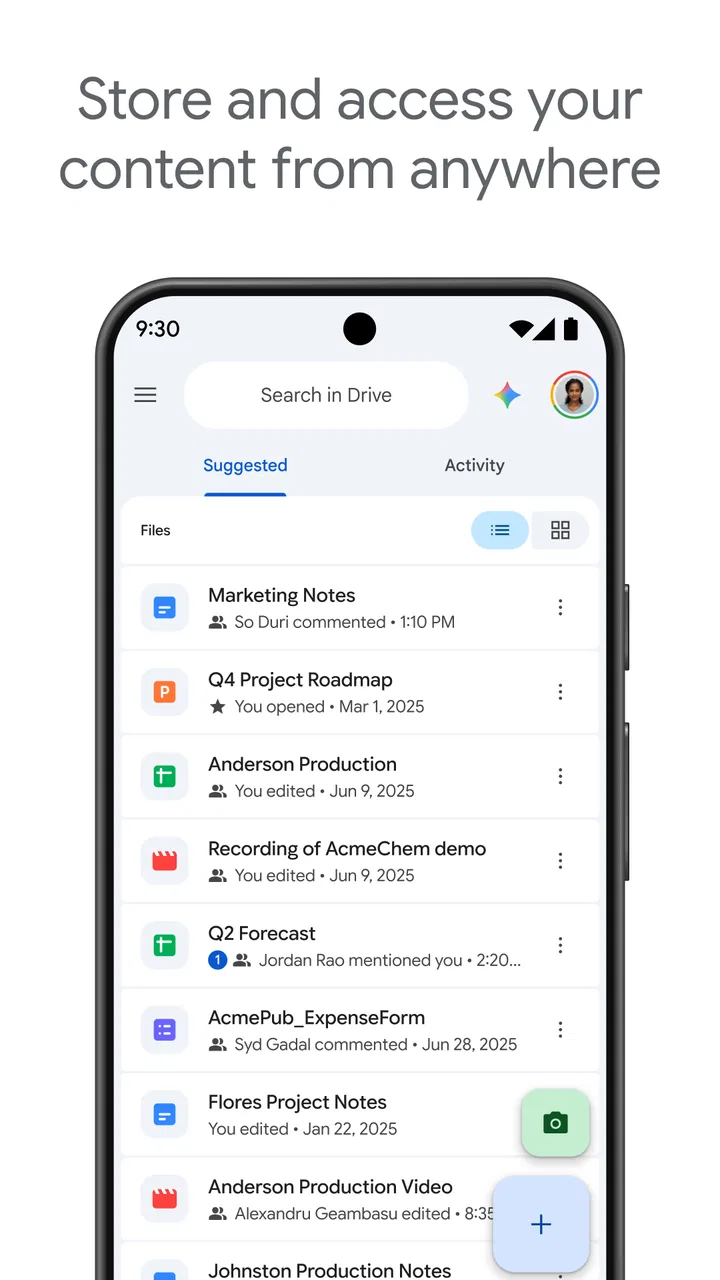
On mobile, I would spend a few minutes learning the actions attached to each file rather than relying only on the large upload button. The options for sharing, moving, renaming, and making a file available for later use are where much of the practical value lives. The exact menu can feel different between Android and iOS, but the underlying idea is the same: manage the file at the moment you find it instead of postponing every decision.
There is also a worthwhile distinction between sharing a file and sharing an entire folder. I use a file share when someone needs one finished item, and a folder when the relationship is ongoing. That small choice prevents accidental clutter and makes it clearer what the other person is expected to see. For a group project, a folder can become the central handoff point; for a tax form or application document, a single file is usually the cleaner option.
A realistic day with the app
Imagine receiving a school form or work document while away from your computer. I can save it to Drive, open it later on a larger screen, and send the completed version without searching through several conversations. If a colleague needs to review it, I can share the relevant item instead of forwarding a long email chain with old attachments. The time saved is not dramatic in one moment, but the repeated interruptions disappear.
Another common situation is preparing for a trip. I can keep reservation documents, identification scans, maps, and confirmation files in one folder. On the phone, that folder is easier to reach than a collection of messages. The important trade-off is that I should prepare the files before leaving rather than assume a connection will always be available. For anything essential, I make sure I can access the needed copy when offline conditions are likely.
For family use, Drive works well when one person scans a document and another needs to handle it. A shared folder can hold household records, while individual files keep one-off exchanges separate. I would not use this arrangement casually for sensitive material without thinking carefully about who has access. Convenience is helpful, but a shared folder can expose more than intended if it is created too broadly.
You May Also Like

 AccuWeather: Weather Radar
AccuWeather Review: A Quick, Clear Forecast for Everyday Decisions
For everyday plans, the best forecast is the one you can understand quickly. AccuWeather makes rain timing, radar, and local conditions easy to act on, with a few trade-offs.

 Hill Climb Racing
Why Hill Climb Racing Still Turns Crashes Into One More Run
A tiny car, a bumpy hill and one more upgrade: Hill Climb Racing keeps resurfacing because its simple chaos makes every near-miss feel personal.

 AliExpress - Shopping App
AliExpress Makes Global Shopping Feel Personal, but Shoppers Bear the Risk
AliExpress turns a global marketplace into a pocket-sized discovery engine. Its reach is useful, its shopping loop compelling, and its trade-offs easy to miss.

 Lords Mobile: Kingdom Wars
Lords Mobile Is a Kingdom-Building Routine, Not a Quick Match
A case-by-case verdict on the building, battles, device demands, and social commitments that make Lords Mobile rewarding for some players and exhausting for others.

 PDF Scanner app - TapScanner
TapScanner Makes Paperwork Easier to Capture, Check, and Share
TapScanner makes scanning with a phone feel less like a rescue operation and more like a dependable step in getting work done. Its capture tools are useful, though not flawless.

 Block Blast!
Block Blast! Shows How Much a Puzzle Game Can Leave Out
A quiet grid game shows why puzzle players increasingly value instant clarity, repeatable skill and low-pressure play—and where the genre still needs to catch up.
More From Our News Desk
View All News


Students and freelancers can get more from the app by using consistent names. A file called “final” is rarely final for long. I prefer names that include the project and purpose, such as a client name and document type, so search remains useful months later. Drive cannot fix vague naming by itself; a little discipline at the moment of saving makes the whole system faster.
Search is more valuable than endless folder browsing
One of my favorite habits is searching before manually opening folders. This works best when file names contain meaningful words. If I remember the subject but not the folder, a precise search can bring the item back faster than reconstructing where I placed it. It is also useful when someone else created the file and I only know part of its title.
There is a subtle trade-off here. A broad search may return too many results, especially when several files share similar names. I get better results by adding a distinctive word, narrowing the location when possible, or changing the name after I receive a file. That is not glamorous advice, but it is one of the clearest ways to turn Drive from a digital cupboard into a dependable filing system.
Search also changes how I organize. I no longer need a perfect folder hierarchy for every possibility. I still use folders for projects and access control, but I do not waste time creating separate branches for every minor variation. A sensible name plus a sensible folder is often enough.
Sharing without creating a mess
Sharing is where Drive becomes more than personal backup. I can send a document to a specific person, collaborate around a shared folder, or provide a file when someone only needs to read or download it. The best choice depends on whether the recipient should keep receiving updates. If the file will change, sharing the ongoing item is more efficient than repeatedly sending replacements.
I pay attention to the difference between convenience and control. A broad sharing option may be quick, but it can be inappropriate for private records or unfinished work. When I am unsure, I share with the intended person rather than distributing access more widely. That extra moment is worth it because correcting an overly open share later is more troublesome than choosing carefully at the start.
For collaboration, I find it useful to agree on one working file and one folder owner or organizer. Without that small agreement, people may create duplicates, move items unexpectedly, or upload their own “latest” copy. Drive provides the shared space, but the team still needs a simple rule for naming and editing. The app reduces coordination friction; it does not replace coordination.
Where it saves time and where it does not
Drive removes several repetitive steps: moving a file between devices, attaching the same document again, hunting through old conversations, and maintaining multiple personal copies. It is particularly strong when my work is spread across a phone and computer. The ability to return to the same files is more useful than any single upload feature.
It can also reduce the anxiety of leaving a device behind. If I save an important document properly, I have a better chance of reaching it from another screen. I still avoid assuming that every file will be available in every situation, especially while traveling or working with poor connectivity. A cloud-based workflow is convenient, but it depends on preparation and a stable account connection.
The app is not equally satisfying for every type of file management. If I need a highly specialized media library, advanced desktop synchronization controls, or a workflow built around a different office ecosystem, another service may fit better. Drive feels strongest when documents and ordinary shared files are central, not when I am trying to turn it into a professional asset-management system.
Small habits that make the experience better
- Use meaningful file names: include the subject and purpose so search can do more of the work.
- Separate active work from archives: a current-project folder is easier to use than one giant collection.
- Share the narrowest useful item: choose a single file when a whole folder is unnecessary.
- Prepare important files before going offline: do not wait until access is urgent.
- Review old shared folders: remove clutter and reconsider access when a project ends.
These habits are more important than uploading everything immediately. A poorly arranged Drive account can become just another place to lose files. A modest structure, consistent names, and deliberate sharing make the app feel much faster without requiring complicated setup.
The limitations I noticed
The first limitation is that cloud storage can encourage false confidence. Seeing a file in the app does not mean every device has a local copy ready for a flight, a basement office, or a weak-signal area. I plan ahead for documents I cannot afford to lose access to. That extra step slightly reduces the convenience, but it is a sensible part of using any cloud service.
The second is visual clutter. Shared files, recent items, uploads, and personal folders can compete for attention. If I accept every shared item without organizing it, the app becomes harder to scan. I get a cleaner experience by moving important material into clear folders and treating the recent view as a shortcut, not as my permanent filing system.
Sharing can also feel confusing when several people are involved. A file may be easy to send, yet the group can still lose track of who is editing what. Drive helps when everyone agrees on one source of truth, but it is less helpful when a team keeps making local copies. In that situation, a dedicated project-management tool or a more specialized collaboration platform may be a better companion.
Storage-related decisions can become relevant over time, particularly for people who save large collections of photos, videos, or repeated exports. The app itself is free, but in-app purchases range from $0.99 to $1,024.00 per item. I would not choose a plan impulsively; first I would remove duplicates, clear temporary files, and decide whether Drive is genuinely the right home for the material.
Who should use it, and who should look elsewhere
I recommend Google Drive to people who move between devices, exchange documents regularly, or need a straightforward shared space for school, work, and household tasks. It is also a good starting point for anyone who wants cloud storage without learning a complicated system. The free entry point makes experimentation easy, and the familiar Google environment lowers the effort of getting started.
I would be more cautious if you mainly need a local-first file manager, a specialized photo workflow, or strict control over a large professional archive. Someone already committed to another office and collaboration ecosystem may find that its storage tool creates a smoother experience. Likewise, a person who dislikes account-based services or rarely needs files away from one device may gain little from adding another layer.
The Everyone rating makes it approachable for general household use, but age suitability is not the same as good sharing judgment. Parents, students, and teams should still think about folder access and the sensitivity of documents. The app is easy enough for casual use, yet its most important decisions are about organization and sharing rather than tapping upload.
My final view after regular use
Google Drive succeeds by removing the small delays that accumulate around files. It gives me one dependable starting point for finding a document, continuing work on another device, or sending the right version to someone else. I value it less as a warehouse and more as a bridge between moments in a project.
It is not frictionless. I still need to name files sensibly, prepare for offline situations, clean up clutter, and share carefully. Those are reasonable responsibilities, but they matter when deciding whether the app will actually simplify life. Used without a little structure, it can become an overcrowded drawer.
For my everyday needs, the balance is favorable. Google Drive is at its best when the goal is fewer file-hunting interruptions and a clearer path from saving to sharing. I would recommend installing it if your documents regularly travel between devices or people. If your needs are highly specialized or entirely local, another option may serve you better, but for ordinary productivity, it remains a practical and flexible choice.
FAQs for Google Drive
01What is Google Drive and what are its main features?
Google Drive is a cloud storage service that allows users to store files online and access them from any device with internet connectivity. Key features include file sharing, real-time collaboration on documents, integration with other Google services like Docs, Sheets, and Slides, and 15 GB of free storage space shared across Google services.
02How secure is my data on Google Drive?
Google Drive uses encryption to protect your files in transit and at rest. Two-factor authentication adds an extra layer of security. Users can manage permissions and share files with specific individuals. While Google Drive is generally secure, users should ensure strong passwords and regularly review shared files for unauthorized access.
03Can I use Google Drive offline?
Yes, Google Drive offers offline access. You can enable offline mode in the settings of the Google Drive app or through the Chrome browser. This allows you to view and edit files without an internet connection. Changes made offline will sync automatically once you reconnect to the internet.
04How does Google Drive handle file versioning?
Google Drive automatically saves revisions of your documents. You can view, restore, or download previous versions of files up to 30 days old, or longer for Google Docs, Sheets, and Slides. This feature helps users recover from accidental changes or deletions, providing an efficient version control system.
05What are the storage limitations and upgrade options for Google Drive?
Google Drive offers 15 GB of free cloud storage shared across Google services like Gmail and Photos. For additional space, users can upgrade to Google One, which offers plans starting at 100 GB for a monthly or annual fee. Google One also includes extra benefits like customer support and family sharing options.
Pros
- Seamless integration with other Google services.
- Generous free storage of 15GB initially.
- Real-time collaboration on documents.
- Cross-platform availability on Android and iOS.
- Easy file sharing with customizable permissions.
Cons
- Limited offline access without prior setup.
- Higher storage plans can be pricey.
- Occasional sync issues with large files.
- Interface may feel cluttered for new users.
- Requires a Google account for full functionality.

Google Drive
Gallery